Download
Note
Run these commands in a Jupyter notebook (or other IDE), ensuring you are in your mapreader Python environment.
Note
You will need to update file paths to reflect your own machines directory structure.
Note
If you already have your maps stored locally, you can skip this section and proceed on to the Load part of the User Guide.
MapReader’s Download subpackage is used to download maps stored on as XYZ tilelayers on a tile server or as IIIF images from a IIIF server.
It contains three classes for downloading maps:
SheetDownloader - This can be used to download map sheets from a tileserver and relies on information provided in a metadata json file.
Downloader - This is used to download maps from a tileserver using polygons and can be used even if you don’t have a metadata file.
IIIFDownloader - This is used to download maps from a IIIF server, using a IIIF manifest file to specify the maps to download.
Downloading maps from XYZ tilelayers
MapReader uses XYZ tilelayers (also known as ‘slippy map tilelayers’) to download map tiles.
In an XYZ tilelayer, each tile in is indexed by its zoom level (Z) and grid coordinates (X and Y). These tiles can be downloaded using an XYZ download url (this normally looks something like “https://mapseries-tilesets.your_URL_here/{z}/{x}/{y}.png”).
Regardless of which class you will use to download your maps, you must know the XYZ URL of your map tilelayer.
SheetDownloader
To download map sheets, you must provide MapReader with a metadata JSON/GeoJSON file, which contains information about your map sheets. Guidance on what this metadata file should contain can be found in our Input Guidance. An example is shown below:
{
    "type": "FeatureCollection",
    "features": [{
        "type": "Feature",
        "geometry": {
            "geometry_name": "the_geom",
            "coordinates": [...]
        },
        "properties": {
            "IMAGE": "101602026",
            "WFS_TITLE": "Nottinghamshire III.NE, Revised: 1898, Published: 1900",
            "IMAGEURL": "https://maps.nls.uk/view/101602026",
            "YEAR": 1900
        },
    }],
    "crs": {
        "name": "EPSG:4326"
        },
}
To set up your sheet downloader, you should first create a SheetDownloader instance, specifying a metadata_path (the path to your metadata.json file) and download_url (the URL for your XYZ tilelayer):
from mapreader import SheetDownloader

my_ts = SheetDownloader(
    metadata_path="path/to/metadata.json",
    download_url="mapseries-tilesets.your_URL_here/{z}/{x}/{y}.png",
)
e.g. for the OS one-inch maps:
#EXAMPLE
my_ts = SheetDownloader(
    metadata_path="~/MapReader/mapreader/worked_examples/persistent_data/metadata_OS_One_Inch_GB_WFS_light.json",
    download_url="https://mapseries-tilesets.s3.amazonaws.com/1inch_2nd_ed/{z}/{x}/{y}.png",
)
Understanding your metadata
At any point, you can view your metadata dataframe using the .metadata attribute:
my_ts.metadata
This can help you explore the structure of your metadata and identify the information you’d like to use for querying.
To help you visualize your maps, the boundaries of the map sheets included in your metadata can be visualized using:
my_ts.plot_all_metadata_on_map()
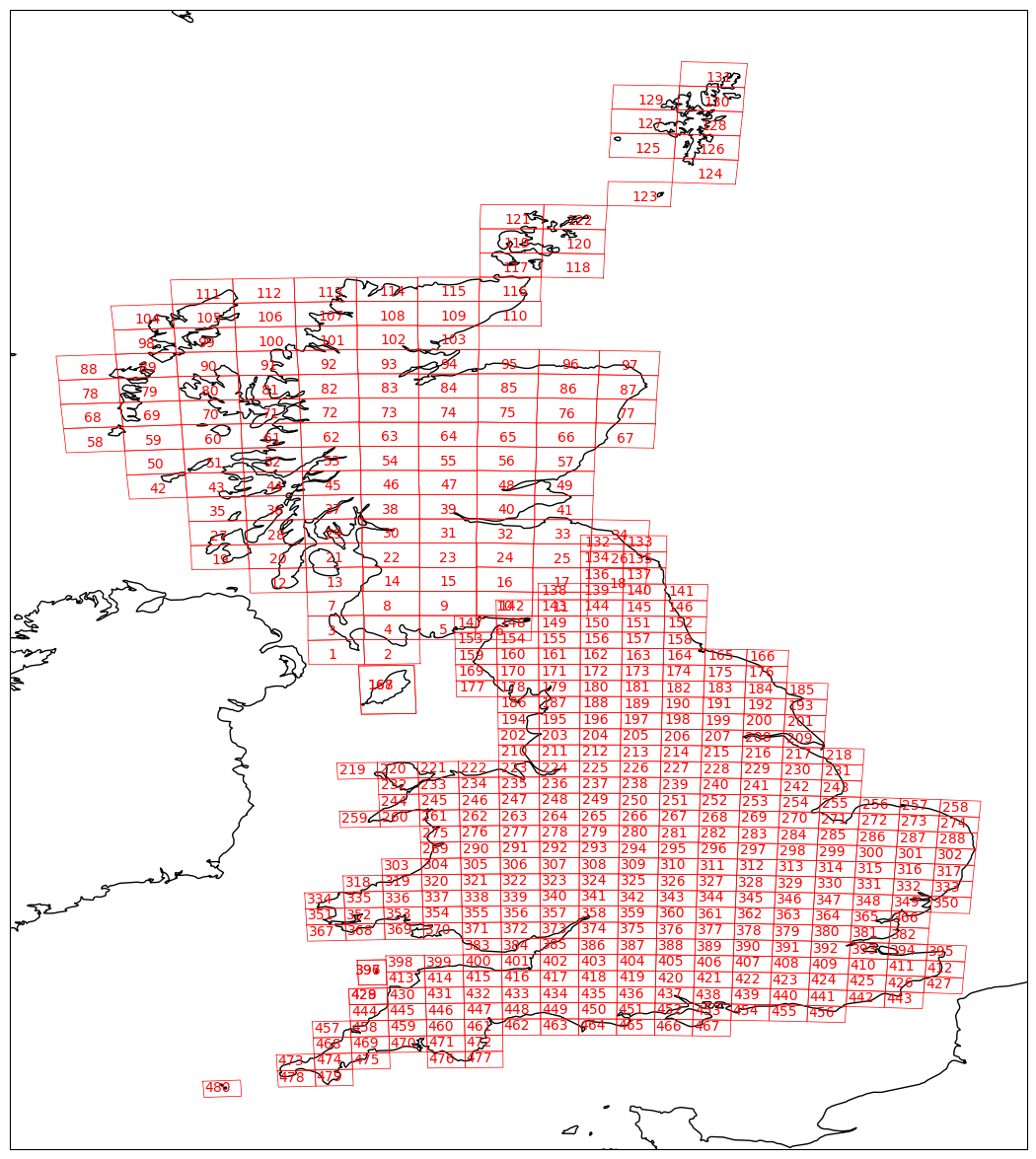
Passing add_id=True when calling this method will add the WFS ID numbers of your map sheets to your plot.
This can be helpful in identifying the map sheets you’d like to download.
Another helpful method is the get_minmax_latlon method, which will print out the minimum and maximum latitudes and longitudes of all your map sheets and can help you identify valid ranges of latitudes and longitudes to use for querying.
It’s use is as follows:
my_ts.get_minmax_latlon()
As well as geographic information, it can also be helpful to know the range of publication dates for your map sheets.
This can be done using the extract_published_dates method:
my_ts.extract_published_dates()
By default, this will extract publication dates from the "WFS_TITLE" field of your metadata (see example metadata.json above).
If you would like to extract the dates from elsewhere, you can specify the date_col argument:
my_ts.extract_published_dates(date_col="YEAR")
This will extract published dates from the "YEAR" field of your metadata (again, see example metadata.json above).
These dates can then be visualized, as a histogram, using:
my_ts.metadata["published_date"].hist()
Query guidance
Your SheetDownloader instance (my_ts) can be used to query and download map sheets using a number of methods:
1. Any which are within or intersect/overlap with a polygon. 1. Any which contain a set of given coordinates. 2. Any which intersect with a line. 3. By WFS ID numbers. 4. By searching for a string within a metadata field.
These methods can be used to either directly download maps or to create a list of queries which can interacted with and downloaded subsequently.
For all query methods, you should be aware of the following arguments:
append- By default, this is set toFalseand so a new query list is created each time you make a new query. Setting it toTrue(i.e. by specifyingappend=True) will result in your newly query results being appended to your previous ones.print- By default, this is set toFalseand so query results will not be printed when you run the query method. Setting it toTruewill result in your query results being printed.
The print_found_queries method, which can be used to print your query results at any time.
It’s use is as follows:
my_ts.print_found_queries()
Note
You can also set print=True in the query commands to print your results in situ. See above.
The plot_queries_on_map method, which can be used to plot your query results on a map.
As with the plot_all_metadata_on_map, you can specify add_id=True to add the WFS ID numbers to your plot. Use this method as follows:
my_ts.plot_queries_on_map()
Download guidance
Before downloading any maps, you will first need to specify the zoom level to use when downloading your tiles. This is done using:
my_ts.get_grid_bb()
By default, this will use zoom_level=14.
If you would like to use a different zoom level, use the zoom_level argument:
my_ts.get_grid_bb(zoom_level=10)
For all download methods, you should also be aware of the following arguments:
path_save- By default, this is set tomapsso that your map images and metadata are saved in a directory called “maps”. You can change this to save your map images and metadata in a different directory (e.g.path_save="my_maps_directory").metadata_fname- By default, this is set tometadata.csv. You can change this to save your metadata with a different file name (e.g.metadata_fname="my_maps_metadata.csv").overwrite- By default, this is set toFalseand so if a map image exists already, the download is skipped and map images are not overwritten. Setting it toTrue(i.e. by specifyingoverwrite=True) will result in existing map images being overwritten.date_col- The key(s) to use when extracting the publication dates from yourmetadata.json.metadata_to_save- A dictionary containing information about the metadata you’d like to transfer from yourmetadata.jsonto yourmetadata.csv. See below for further details.force- If you are downloading more than 100MB of data, you will need to confirm that you would like to download this data by settingforce=True.error_on_missing_map- By default, this is set toTrueand so will raise an error if any of your maps are missing. If you’d like to skip missing maps instead, seterror_on_missing_map=False.
Using the default path_save and metadata_fname will result in the following directory structure:
project
├──your_notebook.ipynb
└──maps
    ├── map1.png
    ├── map2.png
    ├── map3.png
    ├── ...
    └── metadata.csv
By default, your metadata.csv file will only contain the following columns:
“name”
“url”
“coordinates”
“crs”
“published_date”
“grid_bb”
If you would like to transfer additional data from your metadata.json to you metadata.csv, you should create a dictionary containing the names of the fields you would like to save and pass this as the metadata_to_save keyword argument in each download method.
This should be in the form of:
metadata_to_save = {
     "new_column_name_1": "metadata_json_column1",
     "new_column_name_2": "metadata_json_column2",
     ...
}
For example, to save the “WFS_TITLE” field from the example metadata.json above, you would use:
metadata_to_save = {
     "wfs_title": "WFS_TITLE",
}
This would result in a metadata.csv with the following columns:
“name”
“url”
“coordinates”
“crs”
“published_date”
“grid_bb”
“wfs_title”
Finding map sheets which overlap or intersect with a polygon.
The query_map_sheets_by_polygon and download_map_sheets_by_polygon methods can be used find and download map sheets which are within or intersect/overlap with a shapely.Polygon.
These methods have two modes:
“within” - This finds map sheets whose bounds are completely within the given polygon.
“intersects” - This finds map sheets which intersect/overlap with the given polygon.
The mode can be selected by specifying mode="within" or mode="intersects".
The query_map_sheets_by_polygon and download_map_sheets_by_polygon methods take a shapely.Polygon object as the polygon argument.
These polygons can be created using MapReader’s create_polygon_from_latlons function:
from mapreader import create_polygon_from_latlons

my_polygon = create_polygon_from_latlons(min_lat, min_lon, max_lat, max_lon)
e.g. :
#EXAMPLE
my_polygon = create_polygon_from_latlons(54.3, -3.2, 56.0, 3)
Then, to find map sheets which fall within the bounds of this polygon, use:
my_ts.query_map_sheets_by_polygon(my_polygon, mode="within")
Or, to find map sheets which intersect with this polygon, use:
my_ts.query_map_sheets_by_polygon(my_polygon, mode="intersects")
Note
Guidance on how to view/visualize your query results can be found in query_guidance.
To download your query results, use:
my_ts.download_map_sheets_by_queries()
By default, this will result in the directory structure shown in download_guidance.
Note
Further information on the use of the download methods can be found in download_guidance.
Alternatively, you can bypass the querying step and download map sheets directly using the download_map_sheets_by_polygon method.
To download map sheets which fall within the bounds of this polygon, use:
my_ts.download_map_sheets_by_polygon(my_polygon, mode="within")
Or, to find map sheets which intersect with this polygon, use:
my_ts.download_map_sheets_by_polygon(my_polygon, mode="intersects")
Again, by default, this will result in the directory structure shown in download_guidance.
Note
As with the download_map_sheets_by_queries, see download_guidance for further guidance.
Finding map sheets which contain a set of coordinates.
The query_map_sheets_by_coordinates and download_map_sheets_by_coordinates methods can be used find and download map sheets which contain a set of coordinates.
To find maps sheets which contain a given set of coordinates, use:
my_ts.query_map_sheets_by_coordinates((x_coord, y_coord))
e.g. :
#EXAMPLE
my_ts.query_map_sheets_by_coordinates((-2.2, 53.4))
Note
Guidance on how to view/visualize your query results can be found in query_guidance.
To download your query results, use:
my_ts.download_map_sheets_by_queries()
By default, this will result in the directory structure shown in download_guidance.
Note
Further information on the use of the download methods can be found in download_guidance.
Alternatively, you can bypass the querying step and download map sheets directly using the download_map_sheets_by_coordinates method:
my_ts.download_map_sheets_by_polygon((x_coord, y_coord))
e.g. :
#EXAMPLE
my_ts.download_map_sheets_by_coordinates((-2.2, 53.4))
Again, by default, these will result in the directory structure shown in download_guidance.
Note
As with the download_map_sheets_by_queries method, see download_guidance for further guidance.
Finding map sheets which intersect with a line.
The query_map_sheets_by_line and download_map_sheets_by_line methods can be used find and download map sheets which intersect with a line.
These methods take a shapely.LineString object as the line argument.
These lines can be created using MapReader’s create_line_from_latlons function:
from mapreader import create_line_from_latlons

my_line = create_line_from_latlons((lat1, lon1), (lat2, lon2))
e.g. :
#EXAMPLE
my_line = create_line_from_latlons((54.3, -3.2), (56.0, 3))
Then, to find maps sheets which intersect with your line, use:
my_ts.query_map_sheets_by_coordinates(my_line)
Note
Guidance on how to view/visualize your query results can be found in query_guidance.
To download your query results, use:
my_ts.download_map_sheets_by_queries()
By default, this will result in the directory structure shown in download_guidance.
Note
Further information on the use of the download methods can be found in download_guidance.
Alternatively, you can bypass the querying step and download map sheets directly using the download_map_sheets_by_line method:
my_ts.download_map_sheets_by_polygon(my_line)
Again, by default, this will result in the directory structure shown in download_guidance.
Note
As with the download_map_sheets_by_queries method, see download_guidance for further guidance.
Finding map sheets using their WFS ID numbers.
The query_map_sheets_by_wfs_ids and download_map_sheets_by_wfs_ids methods can be used find and download map sheets using their WFS ID numbers.
To find maps sheets using their WFS ID numbers, use:
#EXAMPLE
my_ts.query_map_sheets_by_wfs_ids(2)
or
#EXAMPLE
my_ts.query_map_sheets_by_wfs_ids([2,15,31])
Note
Guidance on how to view/visualize your query results can be found in query_guidance.
To download your query results, use:
my_ts.download_map_sheets_by_queries()
By default, this will result in the directory structure shown in download_guidance.
Note
Further information on the use of the download methods can be found in download_guidance.
Alternatively, you can bypass the querying step and download map sheets directly using the download_map_sheets_by_wfs_ids method:
#EXAMPLE
my_ts.download_map_sheets_by_wfs_ids(2)
or
#EXAMPLE
my_ts.download_map_sheets_by_wfs_ids([2,15,31])
Again, by default, these will result in the directory structure shown in download_guidance.
Note
As with the download_map_sheets_by_queries method, see download_guidance for further guidance.
Finding map sheets by searching for a string in their metadata.
The query_map_sheets_by_string and download_map_sheets_by_string methods can be used find and download map sheets by searching for a string in their metadata.
These methods use regex string searching to find map sheets whose metadata contains a given string.
Wildcards and regular expressions can therefore be used in the string argument.
To find maps sheets whose metadata contains a given string, use:
my_ts.query_map_sheets_by_string("my search string")
e.g. The following will find any maps which contain the string “shire” in their metadata (e.g. Wiltshire, Lanarkshire, etc.):
#EXAMPLE
my_ts.query_map_sheets_by_string("shire")
Note
Guidance on how to view/visualize your query results can be found in query_guidance.
Advanced usage
By default the columns argument is set to None, meaning that this method will search for your string in all metadata fields.
However, you can also specify the columns argument to search within a specific metadata column or columns.
e.g. to search in the “WFS_TITLE” column you should use columns="WFS_TITLE" or, to search in the “WFS_TITLE” and “IMAGE” columns you should use columns=["WFS_TITLE", "IMAGE"].
To download your query results, use:
my_ts.download_map_sheets_by_queries()
By default, this will result in the directory structure shown in download_guidance.
Note
Further information on the use of the download methods can be found in download_guidance.
Alternatively, you can bypass the querying step and download map sheets directly using the download_map_sheets_by_string method:
my_ts.download_map_sheets_by_string("my search string")
e.g. to search for “shire” (e.g. Wiltshire, Lanarkshire, etc.):
#EXAMPLE
my_ts.download_map_sheets_by_string("shire")
Again, by default, these will result in the directory structure shown in download_guidance.
Note
As with the download_map_sheets_by_queries method, see download_guidance for further guidance.
Downloading maps from IIIF servers
MapReader can also download maps from IIIF servers using the IIIFDownloader class.
For more information on IIIF, see their documentation here.
MapReader accepts any IIIF manifest which is compliant with the IIIF Presentation API (version 2 or 3).
IIIFDownloader
To set up your IIIF downloader, you should first create a IIIFDownloader instance.
You will need to specify the paths or URLs of your IIIF manifest(s) and the version number(s) of the IIIF Presentation API it/they is/are compliant with.
If you are unsure of the version of your IIIF manifest, you can check the @context field in the manifest. Otherwise, you can set the iiif_versions argument to "infer" and MapReader will attempt to infer the version from the manifest.
To load a single IIIF manifest from a file:
from mapreader import IIIFDownloader

downloader = IIIFDownloader(
     "path/to/manifest.json",
     iiif_versions=2,
)
Or, to load multiple IIIF manifests from files:
downloader = IIIFDownloader(
     ["path/to/manifest1.json", "path/to/manifest2.json"],
     iiif_versions=[2, 3],
)
The above is a good example of when you might want to use the "infer" option for the iiif_versions argument. Setting this argument to "infer" will allow MapReader to automatically determine the version of each manifest based on its contents, rather than requiring you to specify the version for each manifest.
downloader = IIIFDownloader(
     ["path/to/manifest1.json", "path/to/manifest2.json"],
     iiif_versions="infer",
)
Alternatively, you can load your manifests from URLs.
To load a single IIIF manifest from a URL:
downloader = IIIFDownloader(
     "https://example.com/manifest.json",
     iiif_versions=2,
)
Or, to load multiple IIIF manifests from URLs:
downloader = IIIFDownloader(
     ["https://example.com/manifest1.json", "https://example.com/manifest2.json"],
     iiif_versions=[2, 3],
)
Again, you can use the "infer" option for the iiif_versions argument to allow MapReader to automatically determine the version of each manifest based on its contents.
MapReader will also allow you to mix and match, loading some manifests from files and some from URLs if you so desire.
Manifests should contain an id field which uniquely identifies the manifest. However, if any of your manifests are missing this field, you will need to specify the id field using the iiif_uris argument.
When passing the iiif_uris argument, your list of URIs should always be the same length as the number of input IIIF manifests. For example, if you are loading two manifest and both are missing the id field, pass the two URIs as a list in the iiif_uris argument:
downloader = IIIFDownloader(
     ["https://example.com/manifest1.json", "https://example.com/manifest2.json"],
     iiif_versions=[2, 3],
     iiif_uris=["https://example.com/manifest1.json", "https://example.com/manifest2.json"]
)
Or, if just one of your manifests is missing an id field, pass None for any complete manifests and then pass the URI for the missing manifest:
downloader = IIIFDownloader(
     ["https://example.com/manifest1.json", "https://example.com/manifest2.json"],
     iiif_versions=[2, 3],
     iiif_uris=[None, "https://example.com/manifest2.json"]
)
Once you have created your IIIFDownloader instance, you can use the save_georeferenced_maps or save_maps methods to download your maps.
Save georeferenced IIIF maps
If your maps are georeferenced (e.g. you have a manifest created by Allmaps), you can use the save_georeferenced_maps method to download your maps.
This will download your maps as georeferenced GeoTIFFs.
E.g.:
downloader.save_georeferenced_maps()
By default, this will save your maps in a maps directory and create a metadata.csv file containing information about your maps.
Each map will be saved using the unique ID from its IIIF image server as its filename - this will be saved in the id column of your metadata.csv.
For each map, an unmasked and a masked version will be saved. This corresponds to the whole image and the image masked to show only the polygon created when annotating.
After downloading, your directory will look like this:
project
├──your_notebook.ipynb
└──maps
    ├── map1.tif
    ├── map2.tif
    ├── map3.tif
    ├── map1_masked.tif
    ├── map2_masked.tif
    ├── map3_masked.tif
    ├── ...
    └── metadata.csv
If you’d like to save your maps somewhere else, you can specify the path_save argument (as in the XYZ download methods):
downloader.save_georeferenced_maps(path_save="my_maps_directory")
Note
Since georeferencing was only introduced in IIIF Presentation API version 3, you should ensure that your manifest is compliant with version 3 of the IIIF Presentation API to use the save_georeferenced_maps method. Otherwise, you should use the save_maps method.
Save IIIF maps (non-georeferenced)
If your maps are not georeferenced, you can use the save_maps method to download your maps.
This will download your maps as png files.
E.g.:
downloader.save_maps()
By default, this will save your maps in a maps directory and create a metadata.csv file containing information about your maps.
Again, each map will be saved using the unique ID from its IIIF image server as its filename - this will be saved in the filename column of your metadata.csv.
After downloading, your directory will look like this:
project
├──your_notebook.ipynb
└──maps
    ├── map1.png
    ├── map2.png
    ├── map3.png
    ├── ...
    └── metadata.csv
As above, if you’d like to save your maps somewhere else, you can specify the path_save argument (as in the XYZ download methods):
downloader.save_maps(path_save="my_maps_directory")