Load
Note
Run these commands in a Jupyter notebook (or other IDE), ensuring you are in your mr_py38 Python environment.
Note
You will need to update file paths to reflect your own machines directory structure.
MapReader’s Load subpackage is used to load, visualize and patchify images (e.g. maps) saved locally.
Load images (and metadata)
First, images (e.g. png, jpeg, tiff or geotiff files) can be loaded in using MapReader’s loader function.
This can be done using:
from mapreader import loader

my_files = loader("./path/to/files/*.png")
or
from mapreader import loader

my_files = loader("./path/to/files/", file_ext="png")
For example, if you have downloaded your maps using the default settings of our Download subpackage or have set up your directory as recommended in our Input Guidance:
#EXAMPLE
my_files = loader("./maps/*.png")
or
#EXAMPLE
my_files = loader("./maps", file_ext="png")
The loader function creates a MapImages object (my_files) which contains information about your map images.
To see the contents of this object, use:
print(my_files)
You will see that your MapImages object contains the files you have loaded and that these are labelled as ‘parents’.
If your image files are georeferenced and already contain metadata (e.g. geoTIFFs), you can add this metadata into your MapImages object using:
my_files.add_geo_info()
Note
This function will reproject your coordinates into “EPSG:4326”. To change this specify target_crs.
Or, if you have separate metadata (e.g. a CSV, Excel or GeoJSON file, a pandas DataFrame or a geopandas GeoDataFrame), use:
my_files.add_metadata(metadata="./path/to/metadata.csv") # or .xlsx, .geojson etc.
or, if you have a pandas DataFrame or geopandas GeoDataFrame (metadata_df):
my_files.add_metadata(metadata=metadata_df)
Note
Specific guidance on preparing your metadata file/dataframe can be found on our Input Guidance page.
For example, if you have downloaded your maps using the default settings of our Download subpackage or have set up your directory as recommended in our Input Guidance </using-mapreader/input-guidance/index>, you will have a file called metadata.csv in your maps directory.
You can load it as follows:
#EXAMPLE
my_files.add_metadata(metadata="./maps/metadata.csv")
Advanced usage
Other arguments you may want to specify when adding metadata to your images include:
index_col- By default, this is set to0so the first column of your CSV/TSV/Excel spreadsheet will be used as the index column when creating a pandas DataFrame. If you would like to use a different column you can specifyindex_col.usecols- By default, theadd_metadatamethod will add all the columns in your metadata to yourMapImagesobject. If you would like to add only specific columns, you can pass a list of these as theusecolsargument (e.g.usecols=[`name`, `coordinates`, `region`]) to add only these columns to yourMapImagesobject.ignore_mismatch- By default, this is set toFalseso that an error is given if the images in yourMapImagesobject are mismatched to your metadata. Settingignore_mismatchtoTrue(by specifyingignore_mismatch=True) will allow you to bypass this error and add mismatched metadata. Only metadata corresponding to images in yourMapImagesobject will be added.delimiter- By default, MapReader expects CSV files. If your file is delimited using a different delimiter you should specify the delimiter argument (e.g. a TSV file would requiredelimiter="\t").
Note
In MapReader versions < 1.0.7, coordinates were miscalculated. To correct this, use the add_coords_from_grid_bb method to calculate new, correct coordinates.
Patchify
Once you’ve loaded in all your data, you’ll then need to ‘patchify’ your images.
Creating patches from your parent images is a core intellectual and technical task within MapReader. Choosing the size of your patches (and whether you want to measure them in pixels or in meters) is an important decision and will depend upon the research question you are trying to answer:
Smaller patches (e.g. 50m x 50m) tend to work well on very large-scale maps (like the 25- or 6-inch Ordnance Survey maps of Britain).
Larger patches (500m x 500m) will be better suited to slightly smaller-scale maps (for example, 1-inch Ordnance Survey maps).
In any case, the patch size you choose should roughly match the size of the visual feature(s) you want to label. Ideally your features should be smaller (in any dimension) than your patch size and therefore fully contained within a patch.
To patchify your maps, use:
my_files.patchify_all()
By default, this slices images into 100 x 100 pixel patches which are saved as .png files in a newly created directory called ./patches_100_pixel (here, 100 represents the patch_size and pixel represents the method used to slice your parent images).
If you are following our recommended directory structure, after patchifying, your directory should look like this:
project
├──your_notebook.ipynb
└──maps
│   ├── map1.png
│   ├── map2.png
│   ├── map3.png
│   ├── ...
│   └── metadata.csv
└──patches_100_pixel
    ├── patch-0-100-#map1.png#.png
    ├── patch-100-200-#map1.png#.png
    ├── patch-200-300-#map1.png#.png
    └── ...
If you would like to change where your patches are saved, you can change this by specifying path_save.
e.g:
#EXAMPLE
my_files.patchify_all(path_save="./maps/my_patches_dir")
This will create the following directory structure:
project
├──your_notebook.ipynb
└──maps
    ├── map1.png
    ├── map2.png
    ├── map3.png
    ├── ...
    ├── metadata.csv
    └── my_patches_dir
         ├── patch-0-100-#map1.png#.png
         ├── patch-100-200-#map1.png#.png
         ├── patch-200-300-#map1.png#.png
         └── ...
If you would like to change the size of your patches, you can specify patch_size.
e.g. to slice your maps into 500 x 500 pixel patches:
#EXAMPLE
my_files.patchify_all(patch_size=500)
This will save your patches as .png files in a directory called patches_500_pixel.
Note
You can combine the above options to change both the directory name in which patches are saved and patch size.
Providing you have loaded geographic coordinates into your MapImages object, you can also specify method = "meters" to slice your images by meters instead of pixels.
e.g. to slice your maps into 50 x 50 meter patches:
#EXAMPLE
my_files.patchify_all(method="meters", patch_size=50)
This will save your patches as .png files in a directory called patches_50_meters.
As above, you can use the path_save argument to change where these patches are saved.
MapReader also contains an option to create some overlap between your patches. This can be useful for text spotting tasks where text may be cut off at the edges of patches.
To add overlap to your patches, use the overlap argument:
#EXAMPLE
my_files.patchify_all(patch_size=1024, overlap=0.1)
This will create 1024 x 1024 pixel patches with 10% overlap between each patch.
Note
Greater overlaps will create more patches and result in greater computational costs when running. You should be aware of this when choosing your overlap size.
Advanced usage
Other arguments you may want to specify when patchifying your images include:
square_cuts- This is a deprecated method and no longer recommended for use. By default, this is set toFalseand padding is added to patches at the edges of the parent image to ensure square patches. If you setsquare_cuts=True, instead of padding, there will be some overlap between edge patches.add_to_parent- By default, this is set toTrueso that each time you runpatchify_allyour patches are added to yourMapImagesobject. Setting it toFalse(by specifyingadd_to_parent=False) will mean your patches are created, but not added to yourMapImagesobject. This can be useful for testing out different patch sizes.rewrite- By default, this is set toFalseso that if your patches already exist they are not overwritten. Setting it toTrue(by specifyingrewrite=True) will mean already existing patches are recreated and overwritten.skip_blank_patches- By default, this is set toFalse. Setting toTruewill omit any patches that only contain0values, which can speed up processing on irregularly shaped map images that have empty regions. The Image.getbbox() method is used to determine if a patch is blank.
If you would like to save your patches as geo-referenced tiffs (i.e. geotiffs), use:
my_files.save_patches_as_geotiffs()
This will save each patch in your MapImages object as a georeferenced .tif file in your patches directory.
Note
MapReader also has a save_parents_as_geotiff method for saving parent images as geotiffs.
After running the patchify_all method, you’ll see that print(my_files) shows you have both ‘parents’ and ‘patches’.
To view an iterable list of these, you can use the list_parents and list_patches methods:
parent_list = my_files.list_parents()
patch_list = my_files.list_patches()

print(parent_list)
print(patch_list[0:5])  # too many to print them all!
Having these list saved as variables can be useful later on in the pipeline.
It can also be useful to create dataframes from your MapImages objects.
To do this, use:
parent_df, patch_df = my_files.convert_images()
Then, to view these, use:
parent_df
or
patch_df
Note
These parent and patch dataframes will not automatically update so you will want to run this command again if you add new information into your MapImages object.
At any point, you can also save these dataframes by passing the save argument to the convert_images method:
parent_df, patch_df = my_files.convert_images(save=True)
By default, this will save your parent and patch dataframes as parent_df.csv and patch_df.csv respectively.
If instead, you’d like to save them as excel files, use save_format="excel":
parent_df, patch_df = my_files.convert_images(save=True, save_format="excel")
or, if you’d like to save them as a geojson file, use save_format="geojson":
parent_df, patch_df = my_files.convert_images(save=True, save_format="geojson")
Alternatively, you can save your patch metadata in a GeoJSON file using:
my_files.save_patches_to_geojson()
By default, this will save all the metadata for your patches in a newly created patches.geojson file.
Note
The patch images are not saved within this file, only the metadata and patch coordinates.
Visualize (optional)
To view a random sample of your images, use:
my_files.show_sample(num_samples=3)
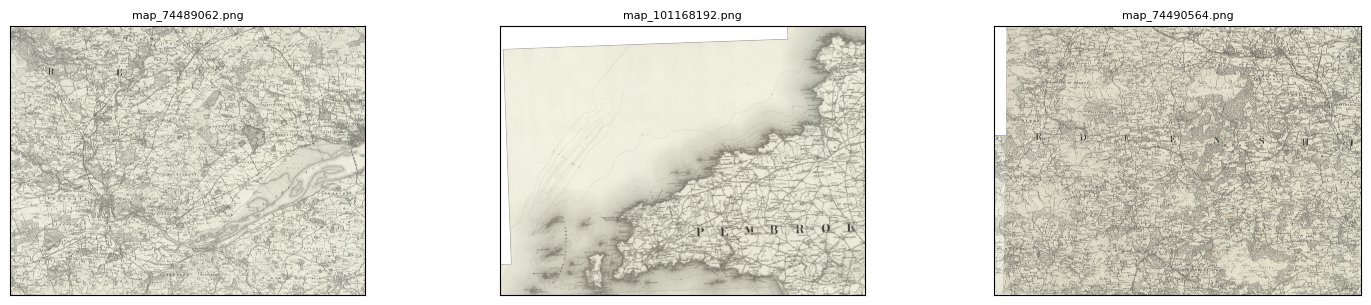
By default, this will show you a random sample of your parent images.
If, however, you want to see a random sample of your patches use the tree_level="patch" argument:
my_files.show_sample(num_samples=3, tree_level="patch")
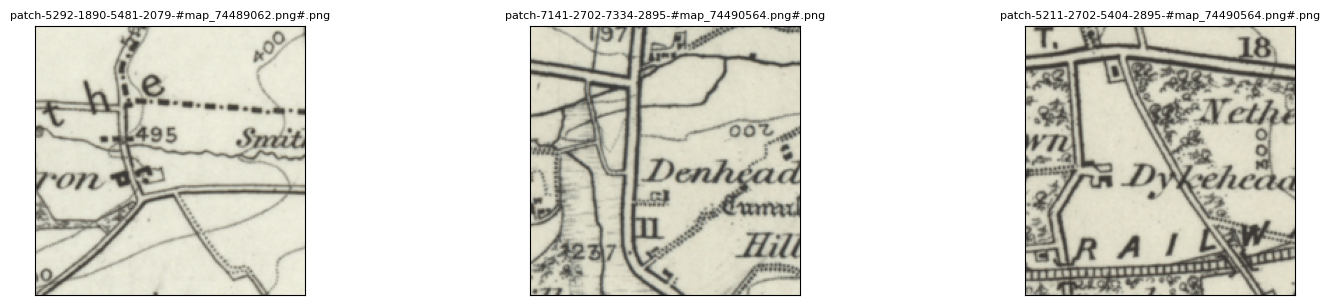
It can also be helpful to see all your patches in the context of their parent image.
To do this use the show_patches method:
parent_list = my_files.list_parents()
my_files.show_patches(parent_list[0])
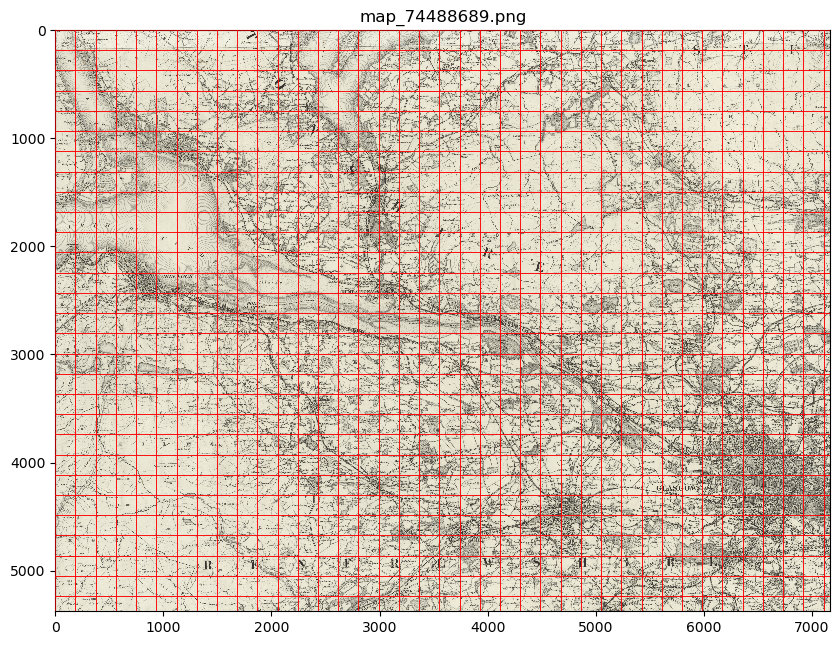
Advanced usage
Further usage of the show_patches method is detailed in Further analysis/visualization (optional).
Please head there for guidance on advanced usage.
If you maps and patches are georeferenced, you can also use the explore_patches method to view your patches on a map.
For example, to view your patches overlaid on an OpenStreetMap.Mapnik layer (the default), use:
parent_list = my_files.list_parents()
my_files.explore_patches(parent_list[0])
Or, if your maps are taken from a tilelayer, you can specify the URL of the tilelayer you’d like to use as the base map:
parent_list = my_files.list_parents()
my_files.explore_patches(
    parent_list[0],
    xyz_url="https://geo.nls.uk/mapdata3/os/6inchfirst/{z}/{x}/{y}.png"
)
Advanced usage
Further usage of the explore_patches method is detailed in Further analysis/visualization (optional).
Please head there for guidance on advanced usage.
Further analysis/visualization (optional)
If you have loaded geographic coordinates into your MapImages object, you may want to calculate the central coordinates of your patches.
The add_center_coord method can used to do this:
my_files.add_center_coord()
You can then rerun the convert_images method to see your results.
i.e.:
parent_df, patch_df = my_files.convert_images()
patch_df.head()
You will see that center coordinates of each patch have been added to your patch dataframe.
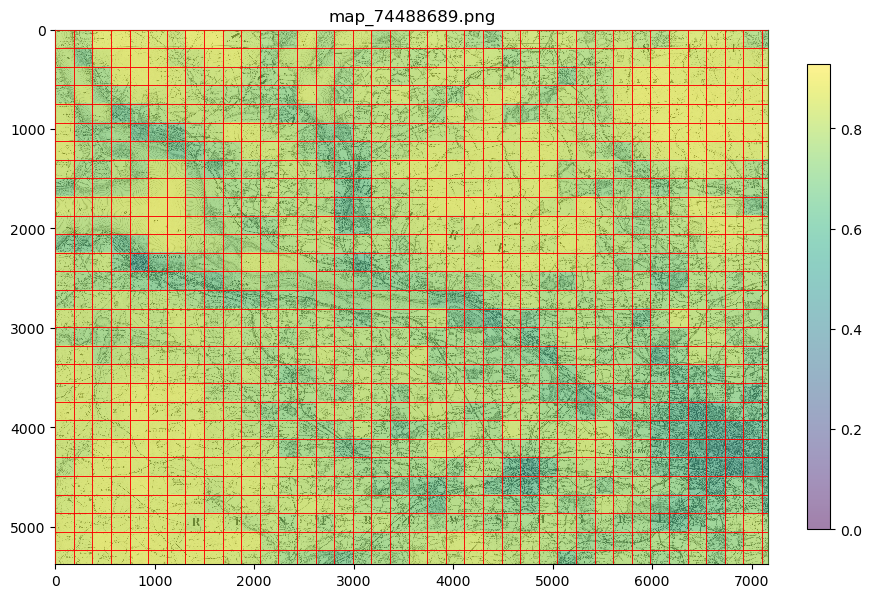
The calc_pixel_stats method can be used to calculate means and standard deviations of pixel intensities of each of your patches:
my_files.calc_pixel_stats()
After rerunning the convert_images method (as above), you will see that mean and standard pixel intensities have been added to your patch dataframe.
The show_patches and explore_patches methods can be used to plot these values on top of your patches.
This is done by specifying the column_to_plot argument.
e.g. to view “mean_pixel_R” on your patches with the show_patches method:
#EXAMPLE
parent_list = my_files.list_parents()
my_files.show_patches(
    parent_list[0],
    column_to_plot="mean_pixel_R"
)
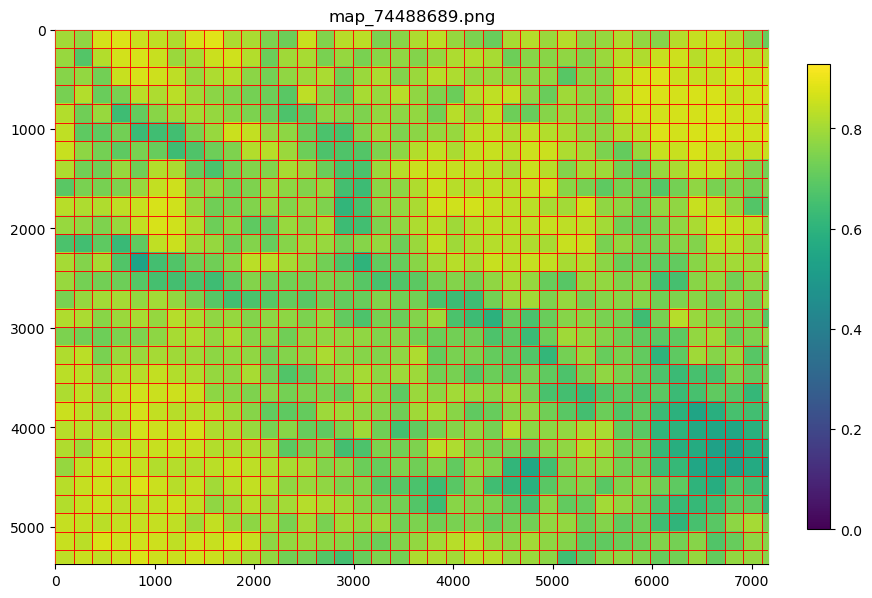
If you want to see your image underneath, you can specify the alpha argument, which sets the transparency of your plotted values.
The value of alpha can range between 0 and 1, with lower alpha values allowing you to see the more of the image underneath.
e.g. to view “mean_pixel_R” on your patches:
#EXAMPLE
parent_list = my_files.list_parents()
my_files.show_parent(
    parent_list[0],
    column_to_plot="mean_pixel_R",
    alpha=0.5
)
Or, if your maps are georeferenced, you can use the explore_patches method to view your patches on a map.
e.g. to view “mean_pixel_R” on your patches:
#EXAMPLE
parent_list = my_files.list_parents()
my_files.explore_patches(
    parent_list[0],
    column_to_plot="mean_pixel_R",
    xyz_url="https://geo.nls.uk/mapdata3/os/6inchfirst/{z}/{x}/{y}.png"
)
Advanced usage
Other arguments you may want to specify when viewing your images (for both the show_patches and explore_patches methods):
categorical- By default, this is set toFalseand so will be inferred. If you have a categorical numerical variable you would like to plot, you can set this toTrue.cmap- By default, this is set to"viridis"`. Any of the color maps found here can be used instead.vminandvmax- By default, these are set toNoneand so will be inferred. If you would like to specify the range of your color map, you can do so by setting these arguments.style_kwargs- This is a dictionary of arguments that is passed to the plotting tool. You can use this to customize your plots further.